Introduction
Learn about the fundamentals of Active Directory Domain Services (AD DS) in Windows Server, including forests, domains, sites, domain controllers, organizational units (OUs), users, and groups.
Learning objectives
After completing this module, you’ll be able to:
- Describe AD DS.
- Describe users, groups, and computers.
- Identify and describe AD DS forests and domains.
- Describe OUs.
- Manage objects and their properties in AD DS.
Prerequisites
To get the best learning experience from this module, you should have knowledge and experience of:
- Windows Server.
- Core networking technologies.
Active Directory Domain Services (AD DS) :
A Microsoft directory service that acts as a central repository for enterprise networks, managing identities, resources, and access control. It simplifies administrative tasks by providing a secure, searchable hierarchy for organizing users, computers, and groups.
The logical framework of AD DS is built on a hierarchy of components: Schema: The blueprint. It defines the exact rules, object types, and attributes (e.g., user account fields, passwords) that can be created in the directory.
| Component | Description | Hierarchical Level | Namespace Relationship | Key Function |
| Domain | A logical, administrative container for grouping resources and security boundaries. | Mid-Level | Maps directly to a portion of the database. | Groups resources and applies security policies. |
| Organizational Unit (OU) | Sub-containers within a domain are used to organize objects. | Lowest-Level | Shares the parent domain’s namespace. | Organizes objects and delegates administrative control to departments/locations. |
| Domain Tree | A hierarchical grouping of domains. | Mid-to-High Level | Shares a continuous, contiguous namespace (e.g., company.com and sales.company.com). | Connects domains with a trust relationship and shared namespace. |
| Forest | The highest-level logical container in AD DS. | Highest-Level | Can contain multiple trees that do not share a contiguous namespace. | Shares a common schema, configuration, and Global Catalog across all domain trees. |
| Partition | Specific portions of the AD DS database. | Database-Level | N/A | Breaks the database into categories (Schema, Configuration, Domain) for replication. |
The following table describes some of the physical components of AD DS.
| Physical Component | Concise Description |
| Domain Controller (DC) | A server containing a copy of the AD DS database; processes and replicates changes across the domain. |
| Data Store | The Ntds.dit file and logs (default: C:\Windows\NTDS) using Microsoft Jet technology to store directory info. |
| Global Catalog (GC) Server | A DC hosting a partial, read-only copy of all forest objects to speed up cross-domain searches. |
| Read-Only Domain Controller (RODC) | A special AD DS installation for low-security locations or branch offices; does not allow direct database changes. |
| Site | A container for objects specific to a physical location, used to manage network traffic and replication topology. |
| Subnet | A range of IP addresses assigned to computers within a specific site; a single site can contain multiple subnets. |
user objects:
- In AD DS, you must provide all users that require access to network resources with a user account. With this user account, users can authenticate to the AD DS domain and access network resources.
- In Windows Server, a user account is an object that contains all the information that defines a user. A user account includes:
- The username.
- A user password.
- Group memberships.
- A user account also contains settings that you can configure based on your organizational requirements.
- The username and password of a user account serve as the user’s sign-in credentials. A user object also includes several other attributes that describe and manage the user. You can use the following to create and manage user objects in AD DS:
- Active Directory Administrative Center.
- Active Directory Users and Computers.
- Windows Admin Center.
- Windows PowerShell.
- The dsadd command-line tool.
· Define AD DS forests and domains:
- An AD DS forest is a collection of one or more AD DS trees that contain one or more AD DS domains. Domains in a forest share:
- A common root.
- A common schema.
- A global catalog.
- An AD DS domain is a logical administrative container for objects such as:
- Users
- Groups
- Computers
- What is an AD DS forest?
- A forest is a top-level container in AD DS. Each forest is a collection of one or more domain trees that share a common directory schema and a global catalog. A domain tree is a collection of one or more domains that share a contiguous namespace. The forest root domain is the first domain that you create in the forest.
- The forest root domain contains objects that don’t exist in other domains in the forest. Because you always create objects on the first domain controller, a forest can consist of as few as one domain with a single domain controller, or it can consist of several domains across multiple domain trees.
- The following graphic displays Contoso.com as the forest root domain. Beneath are two domains, Adatum.com in a separate tree, and Seattle.Contoso.com as a child of Contoso.com.
- The following objects exist in the forest root domain:
- The schema master role.
- The domain naming master role.
- The Enterprise Admins group.
- The Schema Admins group.
Lab Assignments: Day-by-Day Breakdown
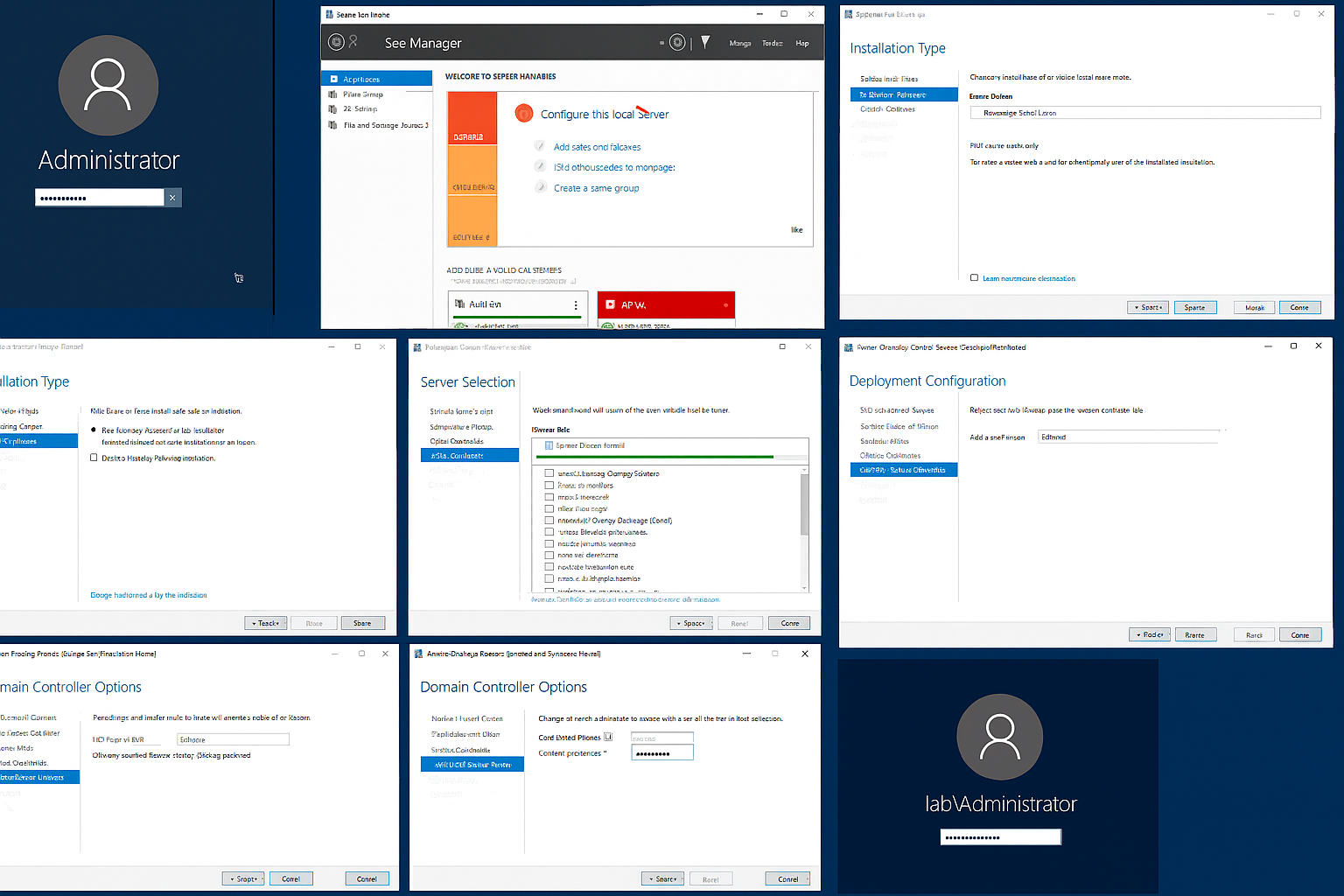
Day 1. AD DS Installation & Domain Controller Setup
This section covers end-to-end installation of Active Directory Domain Services and promoting a server to Domain Controller.
- Login to Windows Server with Administrator credentials
- Open Server Manager → Click Add Roles and Features
- Select Role-based installation → Choose local server
- Select ‘Active Directory Domain Services’ role → Click Next → Install
- After installation, click ‘Promote this server to a domain controller’
- Select ‘Add a new forest’ → Enter root domain name (lab.local)
- Set Directory Services Restore Mode (DSRM) password
- Proceed with defaults → Click Install
- Server will reboot automatically
- Login using domain credentials (lab\Administrator)
Day 2. User, Group & Computer Management
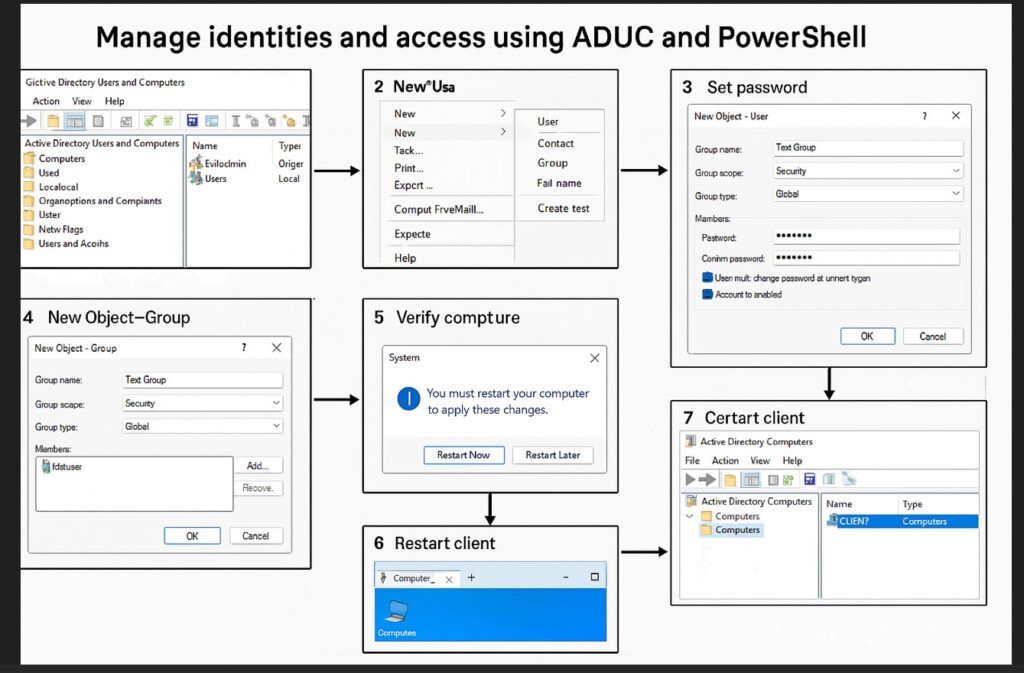
Manage identities and access using ADUC and PowerShell.
- Open ‘Active Directory Users and Computers’ (dsa.msc)
- Right-click Users → New → User → Create test user
- Set password → Enable account
- Create a new Security Group → Add user to group
- Join client machine: Open System → Change settings → Domain → lab.local
- Restart client system
- Verify computer in ADUC under Computers OU
Day 3. Forest & Domain Configuration
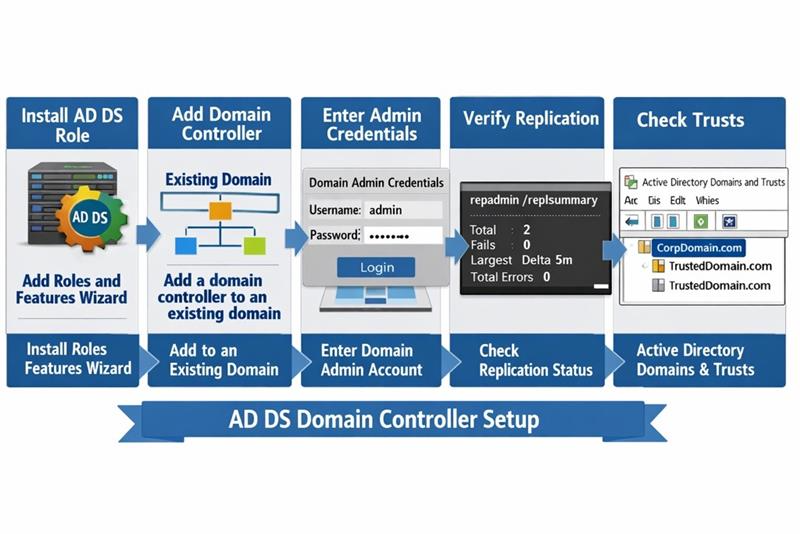
- Install AD DS role on second server
- Promote as Domain Controller (existing domain)
- Select ‘Add a domain controller to an existing domain’
- Provide domain admin credentials
- Verify replication using ‘repadmin /replsummary’
- Check trust: Active Directory Domains and Trusts
Day 4. Organizational Units (OU) Management
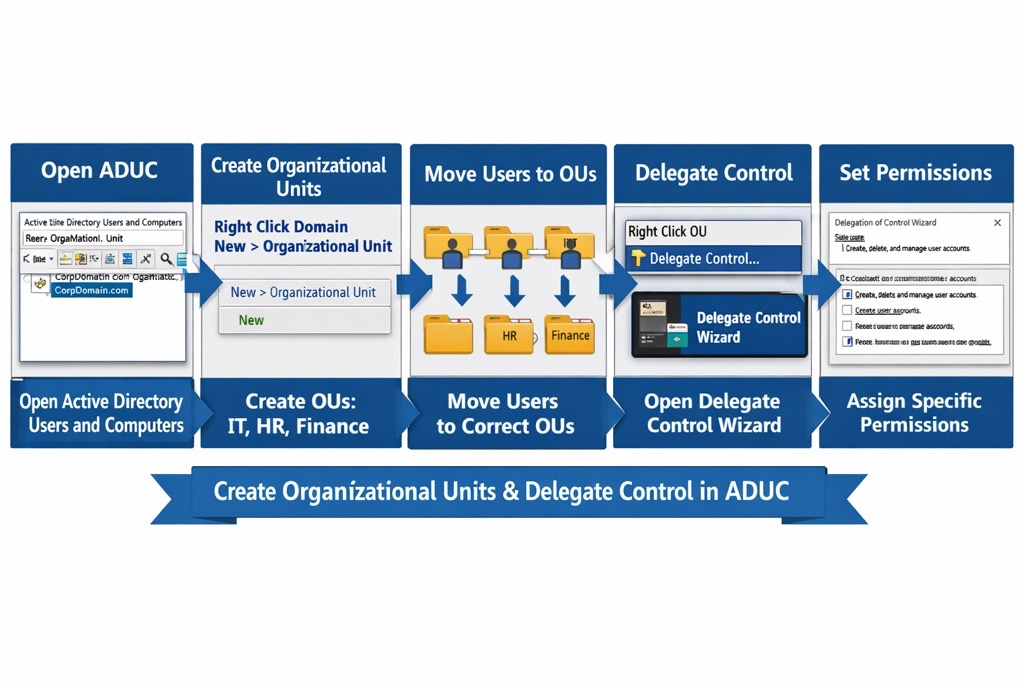
- Open ADUC
- Right-click domain → New → Organizational Unit
- Create OUs: IT, HR, Finance
- Move users to respective OUs
- Delegate control: Right-click OU → Delegate Control Wizard
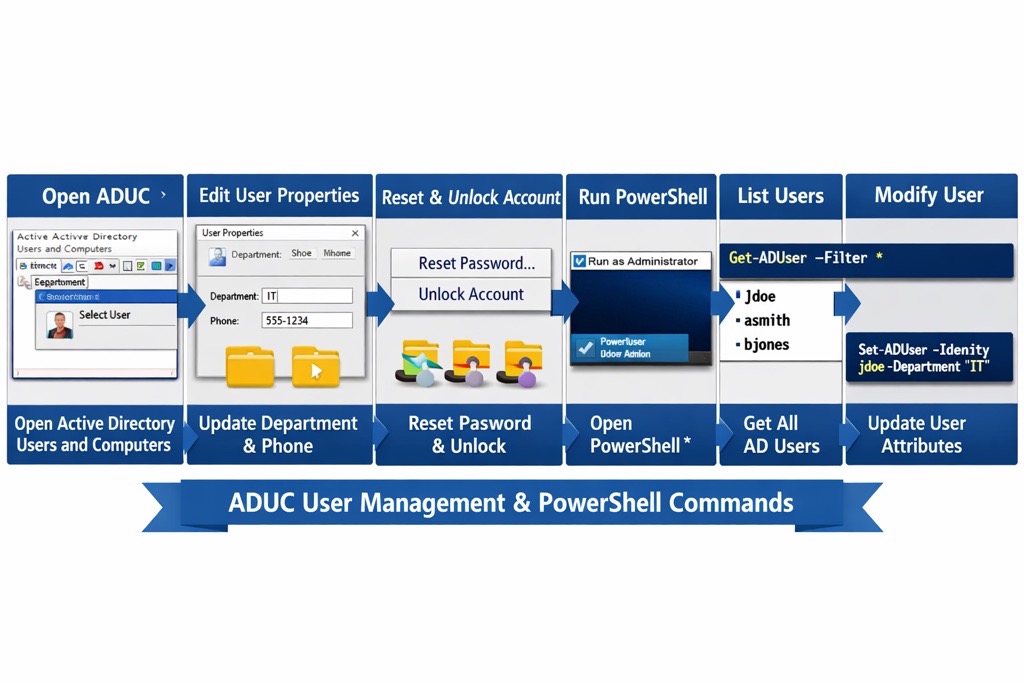
Day 5. Object Management & PowerShell
- Open ADUC → Select user → Properties
- Update attributes (department, phone)
- Reset password and unlock account
- Run PowerShell as Administrator
- Execute: Get-ADUser -Filter *
- Modify user: Set-ADUser -Identity username -Department IT
Thanks