Learning Outline
Table of Contents
- Watch the Introduction Video
- Introduction to Single Sign-On (SSO)
- Benefits of Azure AD Seamless Single Sign-On
- How Azure AD Seamless SSO Works
- Prerequisites for Azure AD Seamless SSO
- Configuring Seamless SSO with Azure AD
Implementation Steps
- Enable Seamless SSO using Microsoft Entra Connect
- Verify Seamless SSO Configuration in Azure AD
- Deploy Seamless SSO using Group Policy (GPO)
- Conclusion
Watch the Video
Watch this video on our YouTube channel to understand how Azure AD Seamless Single Sign-on (SSO) works and learn the step-by-step process to configure SSO with Azure AD.
What is Single Sign-on (SSO)?
Azure AD Seamless Single Sign-on (Seamless SSO) is a feature of Microsoft Entra ID (formerly Azure Active Directory) that automatically signs users in to applications when they are using domain-joined devices connected to the corporate network.
With Seamless SSO enabled, users can securely access both on-premises and cloud applications without repeatedly entering their usernames and passwords.
How Azure AD Seamless Single Sign-on Works
Let’s understand how Azure AD Seamless Single Sign-on works.
When a user attempts to access an application integrated with Azure AD, the authentication request is automatically handled using the user’s Active Directory credentials from the domain-joined device. Azure AD validates the Kerberos ticket generated by the on-premises Active Directory environment and seamlessly authenticates the user without prompting for credentials.
User Authentication Flow in Azure AD Seamless SSO
Now, let’s understand the step-by-step authentication process in Azure AD Seamless Single Sign-on.
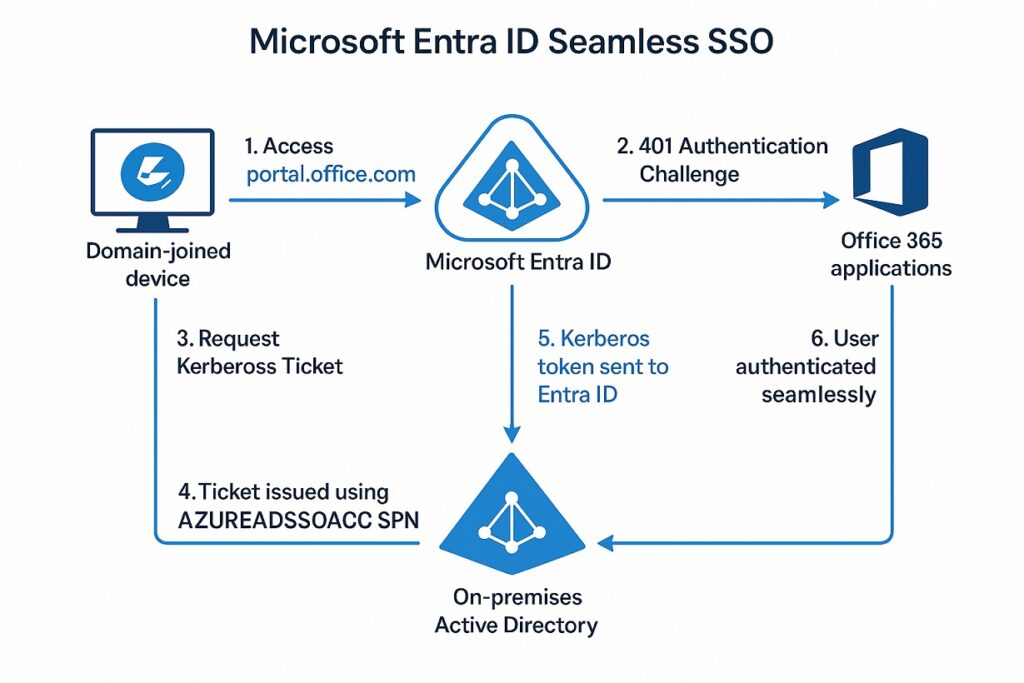
Azure AD Seamless Single Sign-On (SSO) Authentication Flow
- A user attempts to access portal.office.com from a domain-joined device.
- Azure AD silently sends a 401 Unauthorized challenge to the browser, requesting a Kerberos ticket for authentication.
- The browser contacts the on-premises Active Directory Domain Controller to obtain a Kerberos ticket for the Azure AD Seamless SSO computer account (
AZUREADSSOACC). - Active Directory validates the user’s domain session, generates a Kerberos ticket, encrypts it using the secret key of the Azure AD SSO account, and sends the ticket back to the browser.
- The browser forwards the Kerberos ticket to Azure Active Directory (Microsoft Entra ID).
- Azure AD decrypts and validates the Kerberos ticket to verify the user identity.
- Once authentication is successful, Azure AD issues an authentication token to the requested application, and the user is automatically signed in.
In this entire Seamless SSO process, the user does not need to manually enter a username or password. Simply accessing
portal.office.comfrom a domain-joined machine enables automatic authentication.
Azure AD Seamless SSO Prerequisites
Before configuring Azure AD Seamless SSO, ensure the following prerequisites are met:
- Configure Microsoft Entra Connect (Azure AD Connect) using either:
- Password Hash Synchronization (PHS), or
- Pass-through Authentication (PTA)
- Ensure you are running the latest version of Microsoft Entra Connect.
- Administrative credentials are required for:
- Microsoft 365 / Entra ID tenant
- On-premises Active Directory
- Verify that Modern Authentication is enabled in the Microsoft 365 tenant.
- To use Seamless SSO with Microsoft 365 applications such as Outlook, Word, and Excel, ensure the client applications are updated to the latest supported versions.
How to Configure Azure AD Seamless SSO
Enable Seamless Single Sign-On Using Microsoft Entra Connect
Follow the steps below to enable Seamless SSO using Microsoft Entra Connect:
- Open the Microsoft Entra Connect Wizard on the Azure AD Connect server.
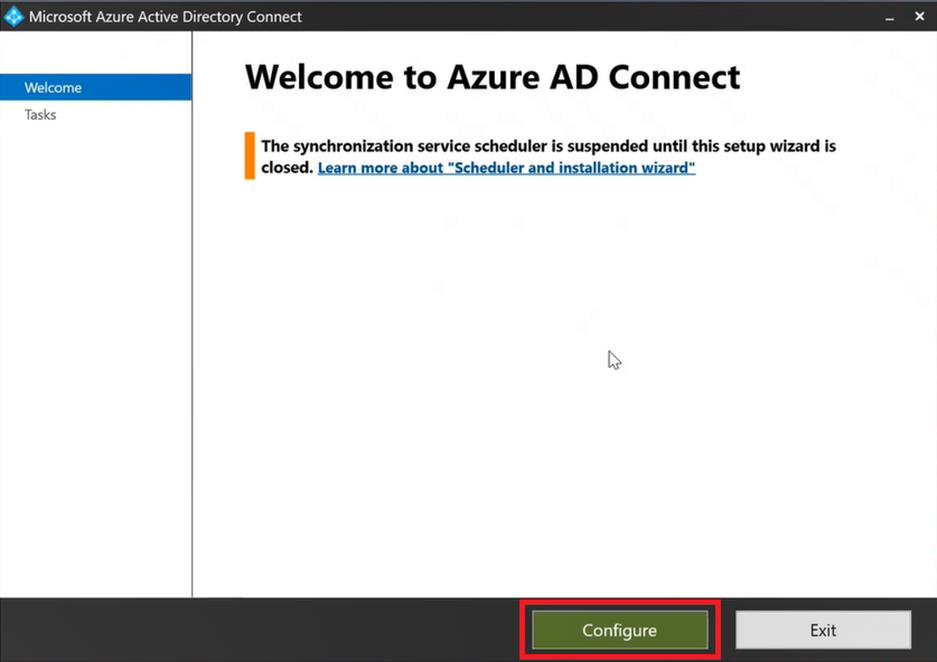
- On the Welcome page, select Configure.
- Choose Customize synchronization options and proceed.
- Sign in using:
- Global Administrator credentials for Microsoft 365 / Entra ID
- Enterprise Administrator credentials for on-premises Active Directory
- On the User sign-in page, select:
- Password Hash Synchronization or
- Pass-through Authentication
- Enable the option:
- ✅ Enable Seamless Single Sign-On
- Complete the wizard and finish the configuration.
- After successful configuration:
- Microsoft Entra Connect creates the
AZUREADSSOACCcomputer account in Active Directory. - Kerberos authentication is automatically enabled for hybrid users.
- Microsoft Entra Connect creates the
Benefits of Azure AD Seamless SSO
- Automatic user authentication
- Improved user experience
- Reduced password prompts
- Supports hybrid identity environments
- Enhanced productivity for domain-joined devices
- Works seamlessly with Microsoft 365 services
Configuration steps:
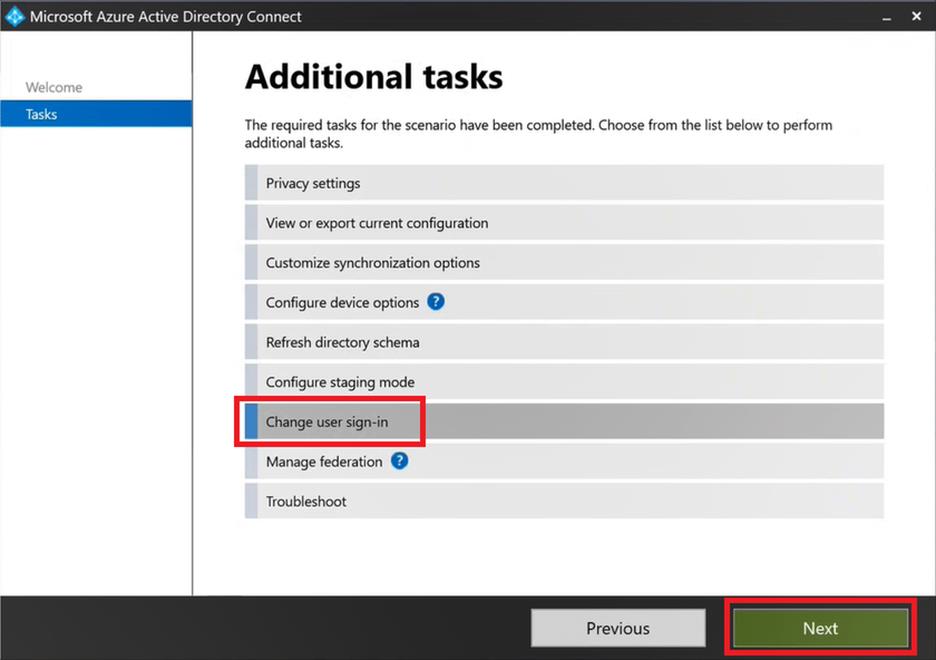
On the Additional tasks page of Azure AD Connect wizard, select Change user sign-in and click Next.
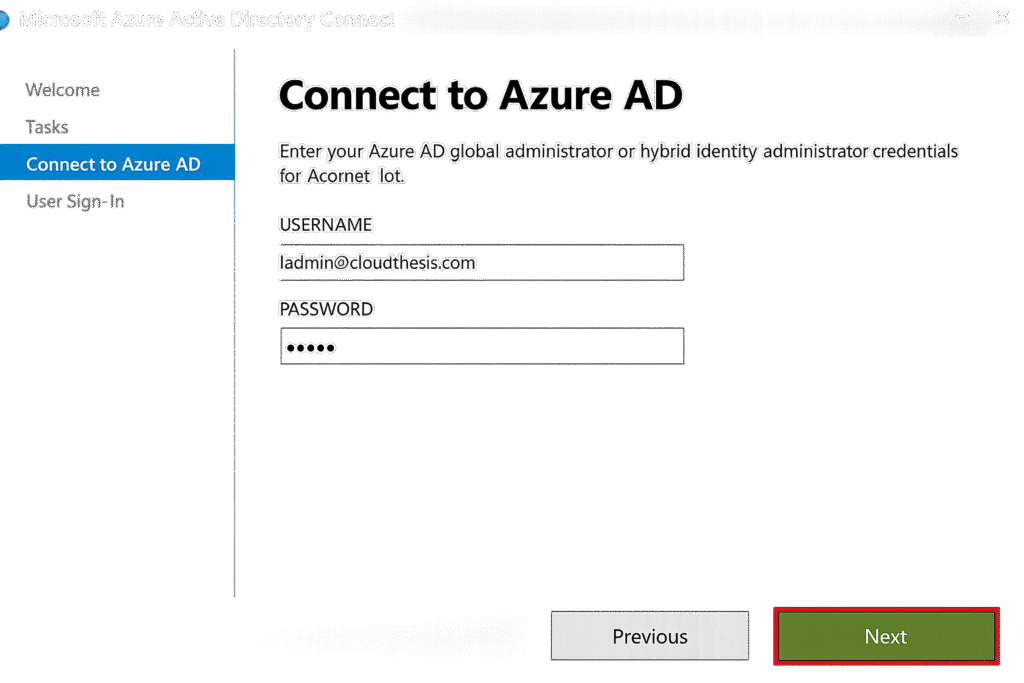
On the Connect to Azure AD page, type Azure AD Global Administrator credentials and click Next.
On the User sign-in page, check Enable single sign-on option and click Next.
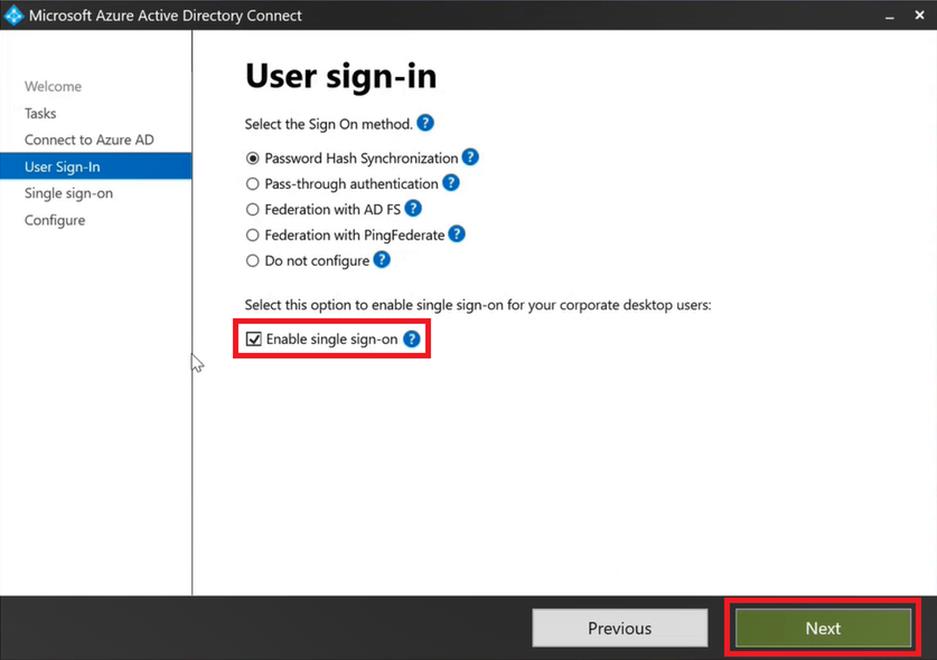
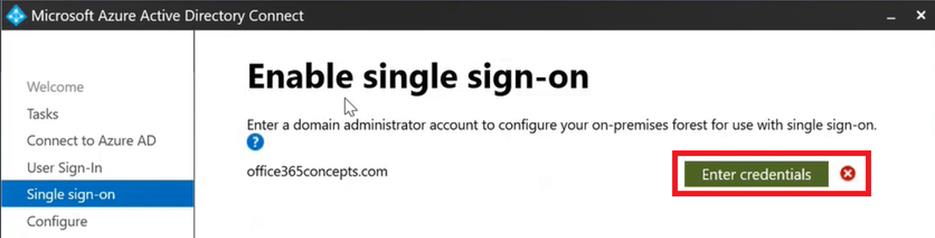
On the Enable single sign-on page click Enter credentials and type on-premises Active Directory Enterprise Admin credentials and click Next.
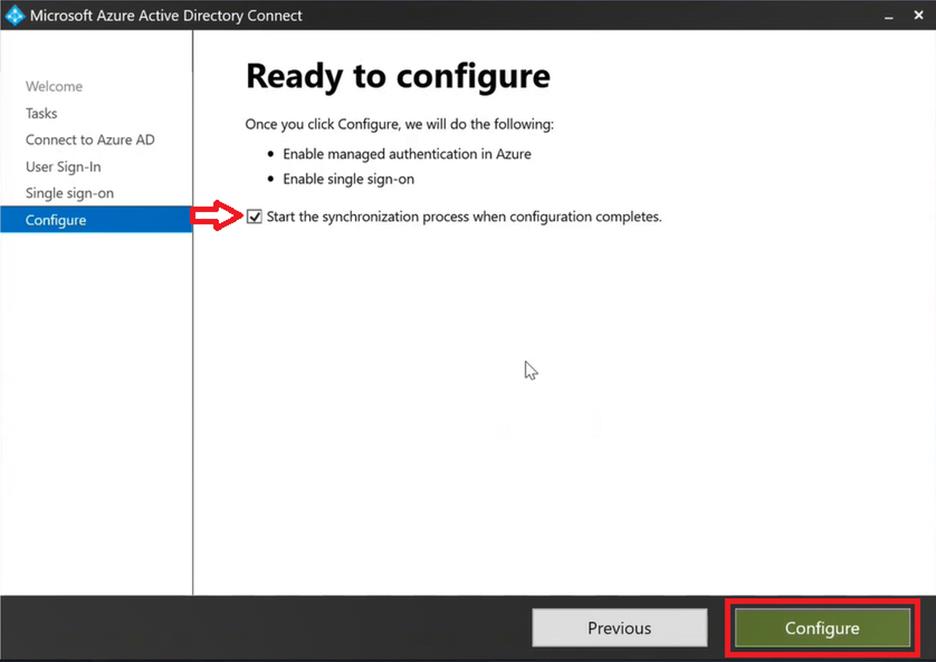
On the Ready to configure page, check Start the synchronization process when configuration completes, and click Configure.
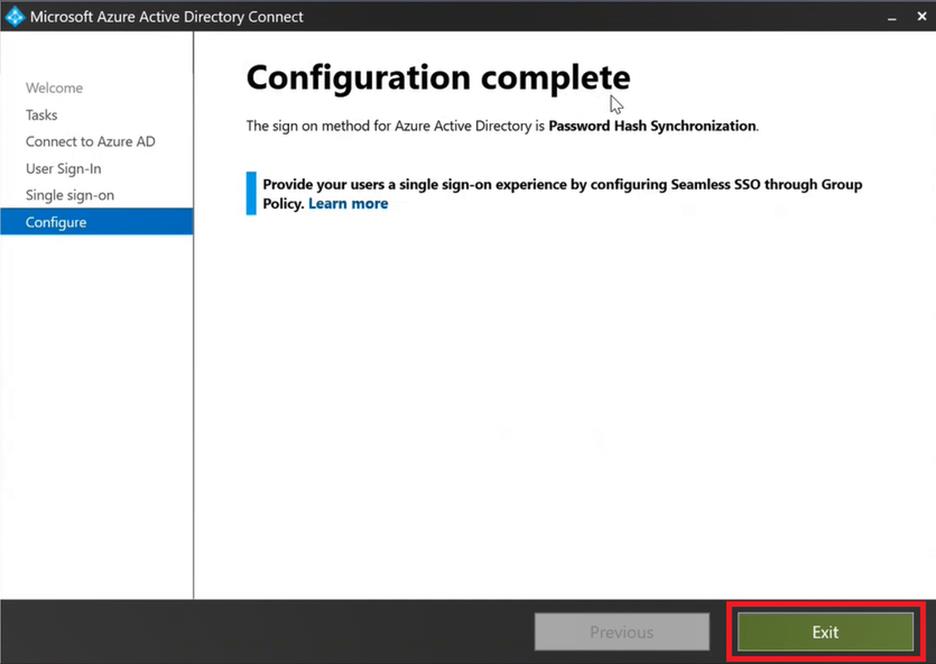
On the Configuration complete page click Exit to close the wizard.
Verify Seamless SSO in Azure AD
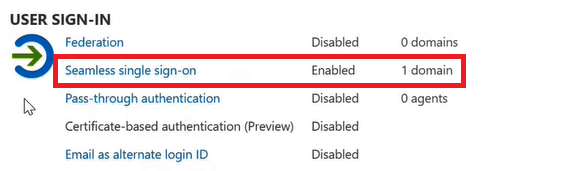
Go to Microsoft Entra Admin Center, click Hybrid management, click Microsoft Entra Connect, click Connect Sync. Verify that Seamless single sign-on is set to Enabled.
Roll out Seamless Single Sign-on using Group Policy
In the next step we will create a group policy in on-premises Active Directory to roll out Seamless SSO to the users.
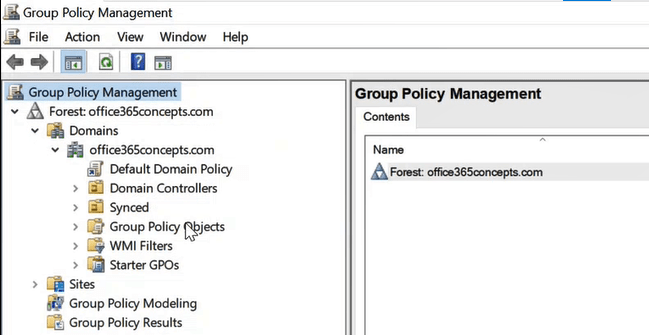
Open Group Policy Management, expand Forest: Domain.com, expand Domains, and expand your Active Directory domain as shown in below image:
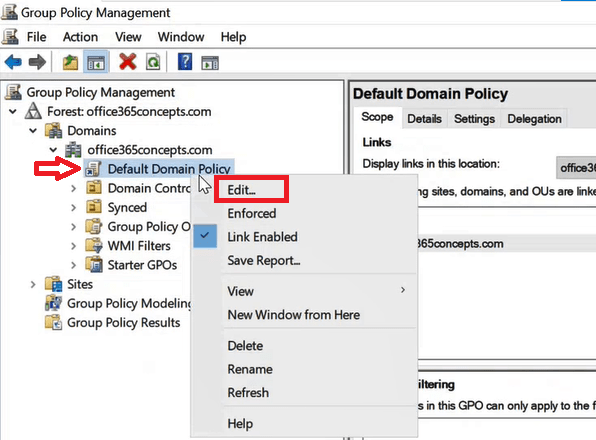
Right click Default Domain Policy and click Edit.
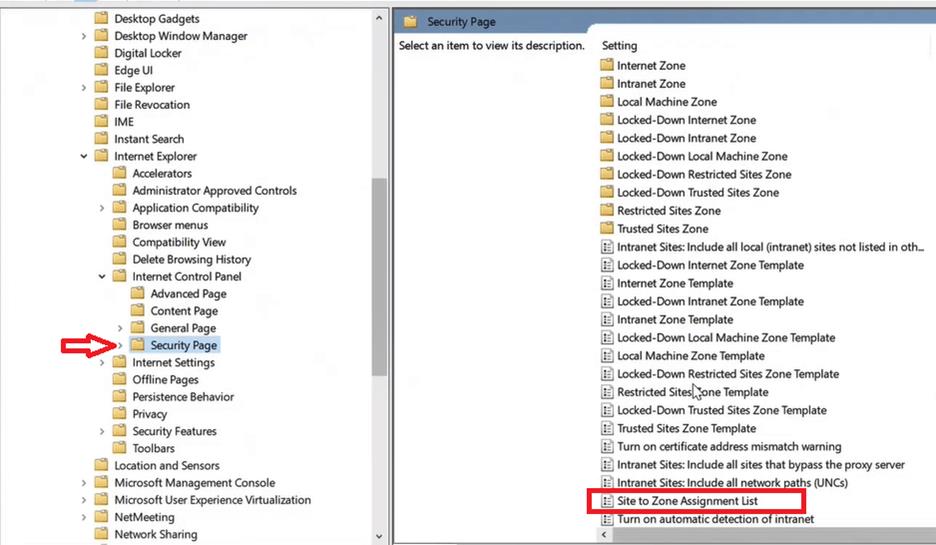
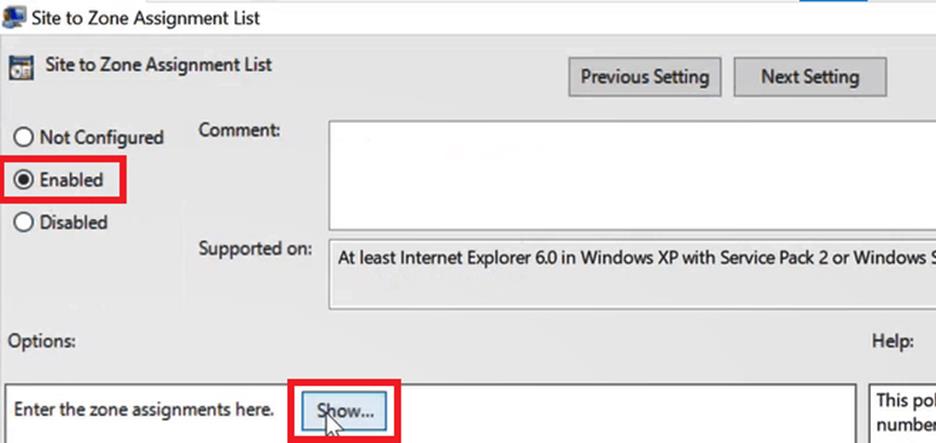
Expand User Configuration > Policies > Administrative Templates > Windows Components > Internet Explorer > Internet Control Panel, click Security Page, and double click Site to Zone Assignment List.
Set the policy to Enabled and click Show.
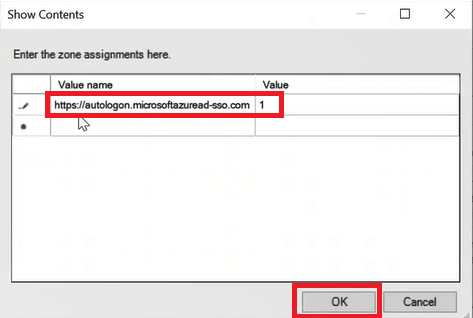
On the Show Contents screen, under Value name type https://autologon.microsoftazuread-sso.com and under Value type 1. Click OK and click OK again.
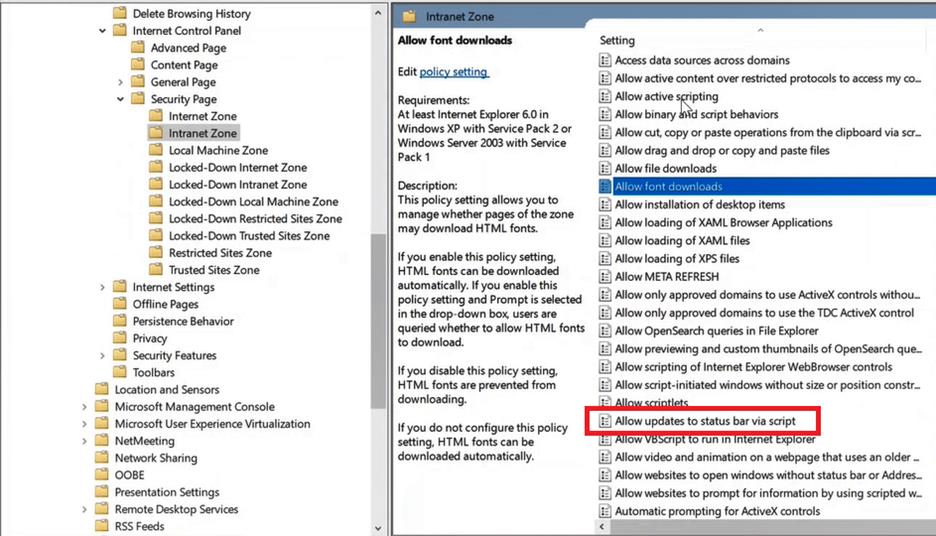
Go to User Configuration > Policies > Administrative Templates > Windows Components > Internet Explorer > Internet Control Panel > Security Page > Intranet Zone, and double click Allow updates to status bar via script.
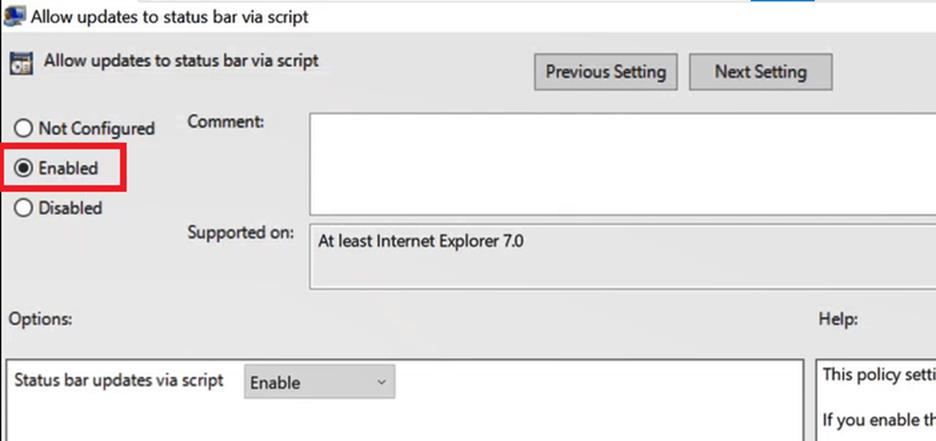
Set this policy to Enabled and click OK.
Go to User Configuration > Preferences > Windows Settings, right click Registry and click New.
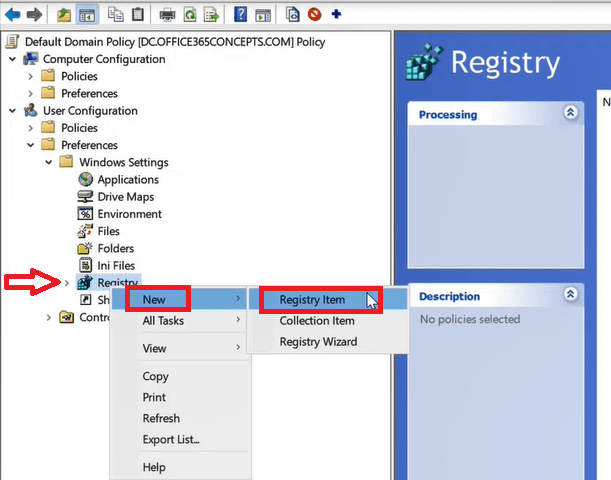
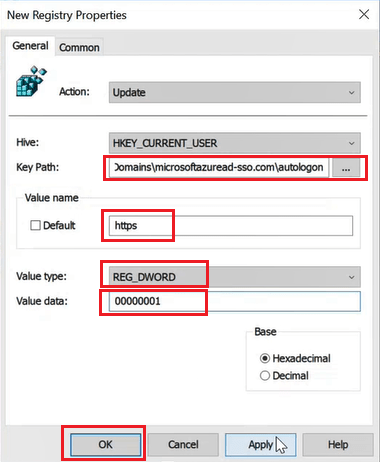
Enter or select the following values as shown below, and then select OK.
Key Path: Software\Microsoft\Windows\CurrentVersion\Internet Settings\ZoneMap\Domains\microsoftazuread-sso.com\autologon
Value name: https
Value type: REG_DWORD
Value data: 00000001
That’s it! Azure AD Seamless SSO has been successfully deployed and configured, enabling secure and seamless user authentication across the environment.
Conclusion
In this article, you learned about Azure AD Seamless Single Sign-On (Seamless SSO), including its functionality, authentication workflow, and deployment process within a Microsoft Entra ID environment. You also gained an understanding of how Seamless SSO enables users to securely access cloud-based applications using their existing on-premises Active Directory credentials without repeatedly entering usernames and passwords. Additionally, this guide covered the configuration steps required to implement and manage Seamless SSO effectively in a hybrid identity infrastructure.
Thanks !